Guide · 06 — Import & Export
Drag it in, drag it out
VAS's relationship with an image is a breathing light — white receives, black gives way.
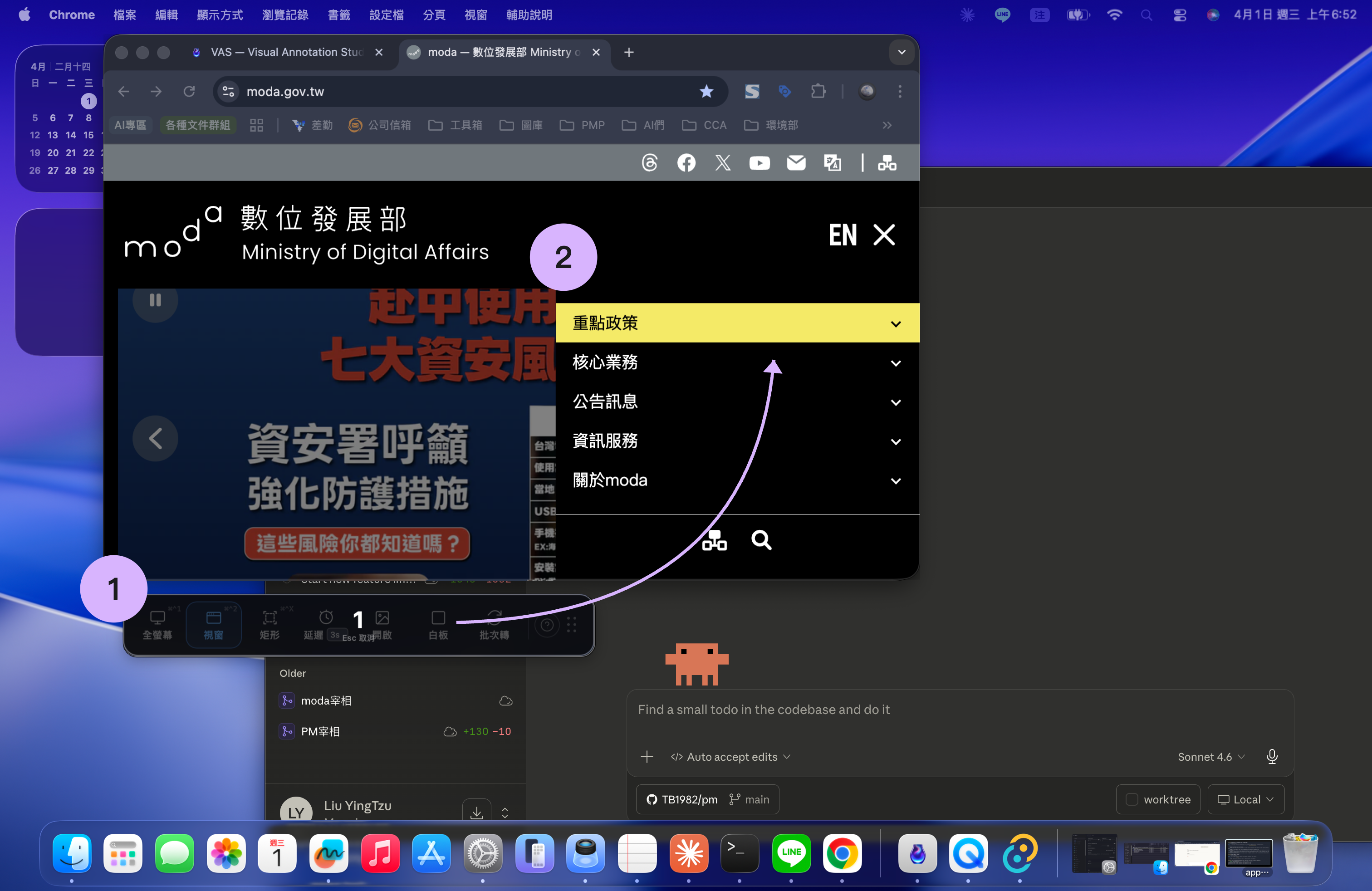
An image comes close and it opens into a toolbar to catch it and open the editor;
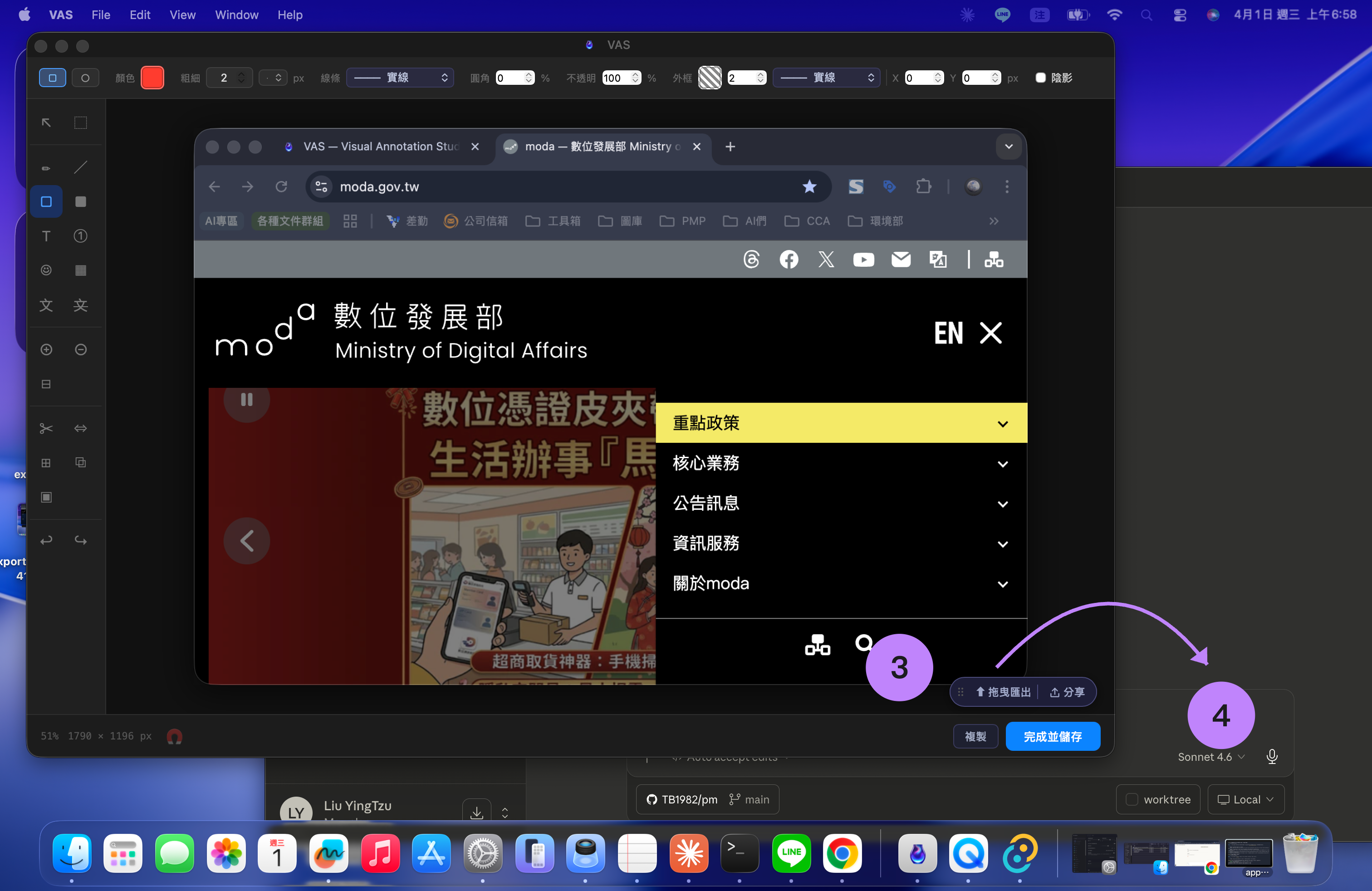
drag to export and it draws into a black hole, handing your whole desktop back to you.
An image comes close and it opens into a toolbar to catch it and open the editor;
drag to export and it draws into a black hole, handing your whole desktop back to you.
VAS's relationship with an image is a breathing light — white receives, black gives way. An image comes close and it opens into a toolbar to catch it and open the editor; drag to export and it draws into a black hole, handing your whole desktop back to you.
Import · the breathing light takes you in
Importing into VAS isn't an “Open file” dialog — you bring the image to it, and it catches the image itself.
- All versionsDrag an image close — the toolbar opens like a Venus flytrap and catches the image you bring it. The moment you let go it drops into the editor; if you were editing something else, it tucks that away and reopens the editor so you can keep going.
- Tauri onlyCopy an image from your browser — a toast pops up asking whether to “paste the image”; say yes and it drops into the editor. Or paste it into the editor directly with your own custom shortcut.
Export · the breathing light sees you out
When you're done editing, VAS gives you four exits — none of them needs you to save first, pick a folder, then open that folder:
- Drag out — Tauri onlythe editor draws into a single black breathing light, handing you the whole desktop. Hold and drag it to the desktop, Finder, Slack, a chat box — anywhere that accepts an image — and let go to send. Fast in two seconds, patient for up to 30, following you across displays and resolutions.
- Copy to clipboard — click “Copy” and the image goes to the clipboard; press ⌘V to paste it elsewhere.
- Tauri onlyShareSheet — the native macOS share panel: send to AirDrop, Messages, Mail or your social media.
- Save to file — write the flattened image to disk (see the format table below for what you can save).
White receivesAn image comes close and the white breathing light opens a toolbar to take it in.
Black gives wayTo send it out, the editor collapses into a black breathing light, handing the desktop back for you to drag.
Format Support
The same format can behave differently by operation · Tauri = VAS Pro; “All versions” includes the free Electron build
| Format | Read / Import | Editor “Save As” | Batch output |
|---|---|---|---|
| PNG · JPG · WebP · GIF | All versions | All versions | All versions |
| TIFF | All versionsrendered via sharp on Electron | All versions | Tauri only |
| BMP | Tauri only | Tauri only | Tauri only |
| SVG | All versions | Can’t save | — |
| Can’t read | Tauri onlyflattened to a single-page PDF | — |